
Connect over SFTP with FileZilla: send your files to the server
you connect to your game server with FileZilla to send, download and edit files in bulk (mods, worlds, configurations).
Before you start
- The panel’s file manager is enough for a few files. SFTP is handier for sending a big folder (a world, dozens of mods): it transfers in batches, in parallel, with resume.
- You need a free SFTP program, such as FileZilla (filezilla-project.org) or WinSCP.
- Your SFTP password is the same as your panel password. Keep it to yourself: do not send it to anyone, support included.
Note the connection details
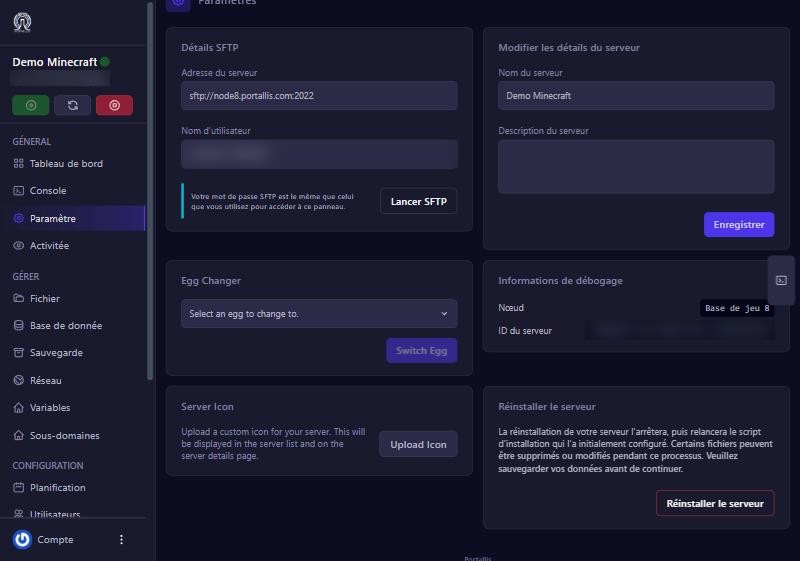
On the panel, open your server then Paramètre (Settings). The Détails SFTP (SFTP details) card gives:
- Adresse du serveur (server address): like
sftp://node8.portallis.com:2022(the name of the node hosting your server, then port 2022); - Nom d’utilisateur (username): specific to this server, like
portallis-N.xxxxxxxx; - a reminder: the password is your panel password.
Connect with FileZilla
In FileZilla, open the Site Manager, create a New site and fill in:
- Protocol: SFTP (SSH File Transfer Protocol).
- Host: the node name (for example
node8.portallis.com), withoutsftp://. - Port:
2022(not the usual port 22). - Logon type: Normal.
- User: the username from the panel.
- Password: your panel account password.
Click Connect. The first time, FileZilla shows the server’s fingerprint: accept it, you can tick “Always trust”.
Send and fetch files
Your computer is on the left; your server on the right. Drag a file or folder from left to right to upload it, and from right to left to download it. The root is your server’s folder, as in the panel’s file manager: for example server.properties, mods or world on Minecraft.
The “Lancer SFTP” shortcut
The panel’s Lancer SFTP (Launch SFTP) button opens the SFTP address in the program associated on your computer (if any). You will have to type the password in the program.
Precautions
- Stop the server before replacing configuration files or a world: a running server can write over them.
- Do not delete what you do not know (game files, the
librariesfolder). - Keep a local copy of what you replace.
If it does not work
“Connection timed out” / connection refused
check port 2022 and the node name. We checked from outside that the node’s port 2022 answers (it announces an SSH server). If it does not for you, a firewall or a company network may block the port.
“Authentication failed”
the username or password is wrong. Copy the exact username from the panel; the password is the panel’s (if you changed it, use the new one).
The folder is empty
are you connected to the right server? Each server has its own username.
A file will not upload
check it is not already open by the server; stop the server then try again.
Questions? Get in touch
Our team will answer by message or on Discord.