
your FiveM server runs Qbox, the modern successor to QBCore (compatible with many QBCore resources), linked to its database.
qbox (see “Install ESX”, step 1).Settings, FXServer tab, Reset the data folder (nothing is deleted), then open /server/setup.
Popular Recipes, then the Qbox template. Keep the suggested folder (Save), then Go to Recipe Deployer and review the recipe (qbox-project repository).
Next, then Show/Hide Database options:
s134_qbox database.s134_qbox. Delete Database: OFF.Run Recipe: about 120 tasks, allow 3 to 4 minutes, until “All done!”.
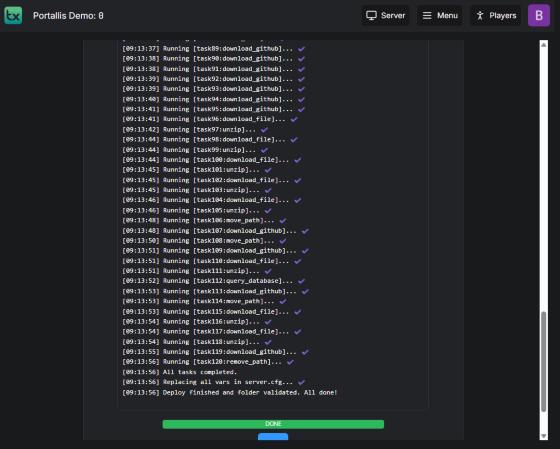
In the server.cfg, the two lines endpoint_add_tcp and endpoint_add_udp are at the very top of the file (lines 11 and 12): replace 30120 with your server’s main port (for example 25005). Click Save & Run Server.
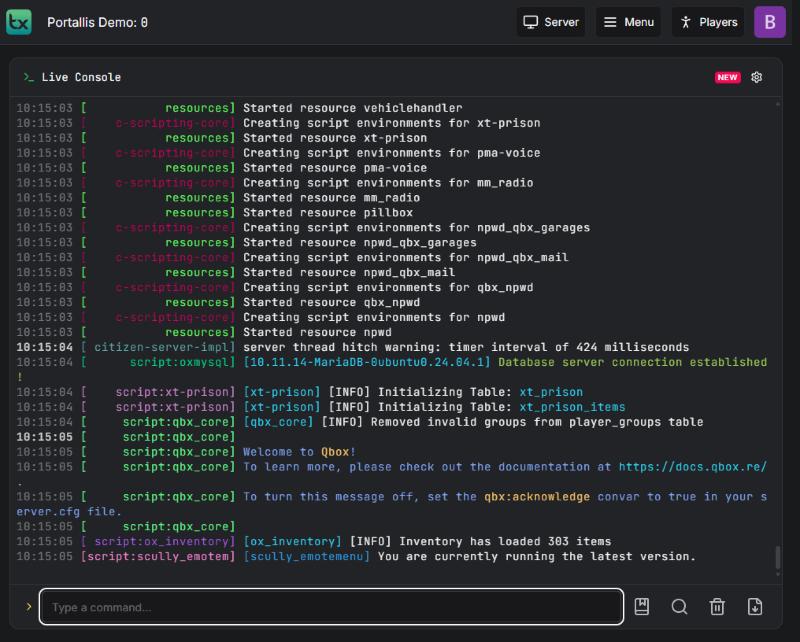
The console shows “Database server connection established”, then “Welcome to Qbox!”.
wrong username or password. Use those of s134_qbox.
check both endpoint_add_* lines.
Qbox loads many resources, give it a minute.
Our team will answer by message or on Discord.