
Start your Hytale server: authorising with your Hytale account
you start your Hytale server for the first time and authorise it with your Hytale account so it can launch.
Before you start
- You need a Hytale account that owns the game, and a browser. This authorisation is personal: do it yourself, never send your password to anyone (support included).
- The server is installed on the panel when you pick Hytale (or when you change game: see “Change game”). In our test, the install took under a minute.
Start
On the panel, click Start. The Console shows “Checking for Hytale server update…”: the server checks for an update before launching.
Read the authorisation message
The console then shows a message like: “Please visit the following URL to authenticate”, an address https://oauth.accounts.hytale.com/oauth2/device/verify?user_code=…, then “Authorization code: …”. The code is single-use, specific to your server, and expires after a while.
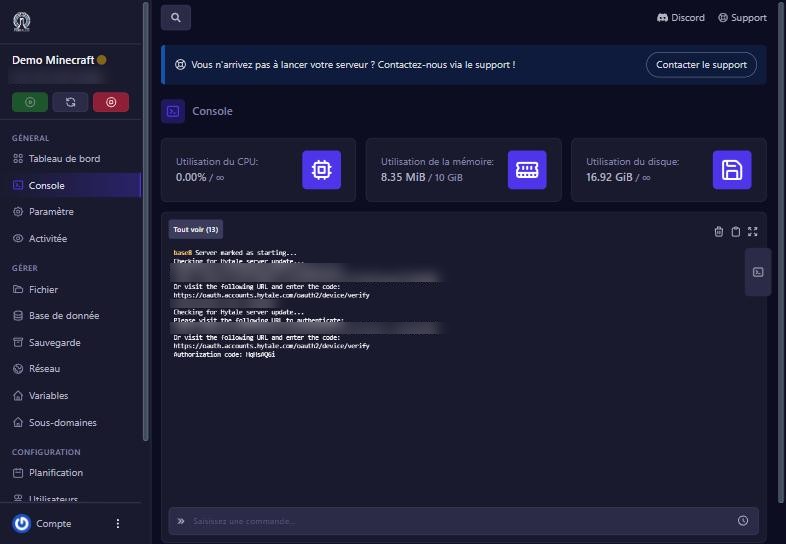
Authorise with your account
Open the shown address (or go to Hytale’s “device” page and type the code), sign in to your Hytale account and confirm. The server then resumes starting. Share neither the code nor a console screenshot at that moment.
Check
After the authorisation, the console keeps scrolling (world loading, port opening). The server is ready when the messages settle. Your server’s port is the one on the dashboard.
If it does not work
The authorisation message comes back in a loop
the code expired or was not confirmed. Restart the server to get a new code, then confirm it quickly.
“Account does not own Hytale” or a refusal
the account used does not own the game. Use the one that bought it.
The console stays stuck on “Checking for Hytale server update”
wait a minute (download); otherwise restart.
The server stops right after starting
read the console and write to us.
Questions? Get in touch
Our team will answer by message or on Discord.