Choose your Minecraft server version: Paper, Fabric, Forge…
you know which server type (Vanilla, Paper, Fabric, Forge…) to pick for what you want to do, and how to change it from the panel without nasty surprises.
Before you start
- The Versions screen (Minecraft section) is where you pick the software that runs your server and the game version. This choice decides what you can add next: plugins, mods or nothing.
- Changing version can wipe your server. The install window contains a “danger zone” (see step 4). Make a backup first, if your plan includes backups, and do not tick anything before reading it.
Read the screen
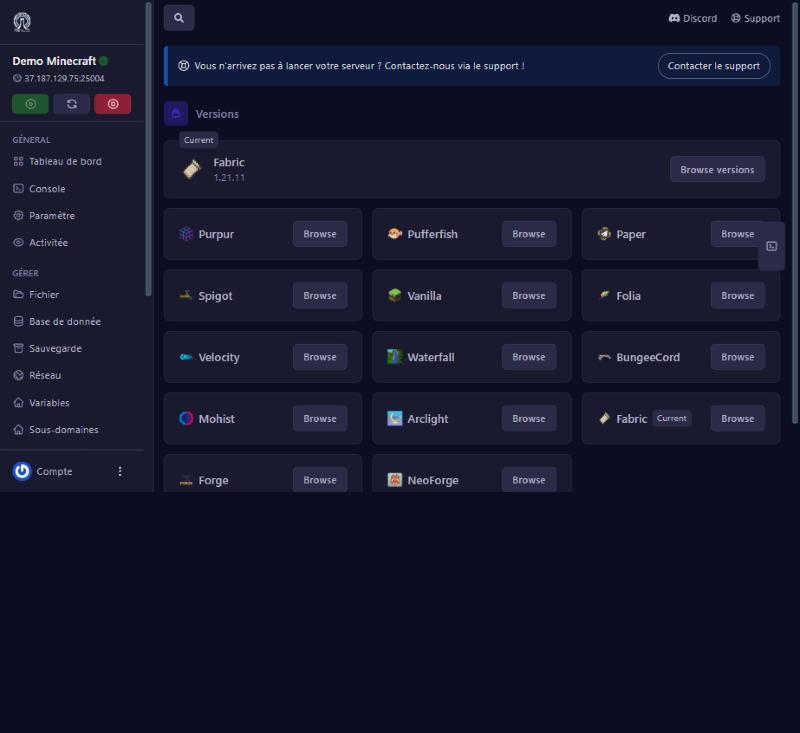
At the top, the Current card shows what runs now: here Fabric 1.21.11, with a Browse versions button. Below, a grid of choices, each with a Browse button: Purpur, Pufferfish, Paper, Spigot, Vanilla, Folia, Velocity, Waterfall, BungeeCord, Mohist, Arclight, Fabric, Forge and NeoForge. The running one carries the Current label. Versions come from a third-party catalogue named at the bottom of the page (“Powered by MCJars”).
Pick the right server type
- Vanilla: the official game, no plugins or mods. The simplest, for playing with friends with no extras.
- Paper, Spigot, Purpur, Pufferfish, Folia: plugin servers (land protection, shops, economy). Paper is the usual choice: fast and widespread. Players install nothing. See the “Install a plugin” guide.
- Fabric, Forge, NeoForge: mod servers (new creatures, items, dimensions). Players must install the same mods. See “Add a mod” and “Install a modpack”.
- Mohist, Arclight: “hybrid” servers that aim to load mods and plugins; trickier, keep them for special cases.
- Velocity, Waterfall, BungeeCord: proxies that link several Minecraft servers behind one address. Pointless for a single server.
Pick the game version
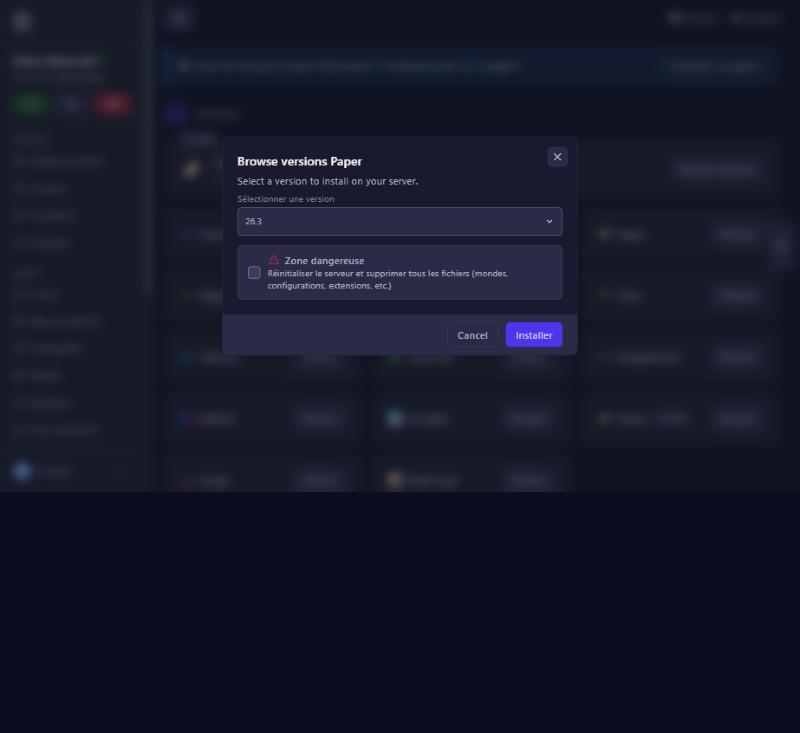
Click Browse next to the chosen type. The “Browse versions” window offers the Select a version list: newest first (on Paper: 26.3, 26.2, 26.1.2, 26.1.1, then “rc” test builds, then 1.21.11, 1.21.10, and so on: 68 entries when we looked). Pick your players’ version: if they play 1.21.11, do not take 26.3.
The “danger zone”
Under the list, a checkbox carries the warning: Reset the server and delete all files (worlds, configurations, extensions, etc.) (shown in French on the panel). It is unticked by default.
- Ticked: the server is reset, you lose worlds, settings and extensions. Keep it for a deliberate fresh start.
- Unticked: the case to favour for a simple version upgrade, with a backup beforehand. We tested it (from Fabric 1.21.7 to Fabric 1.21.11, box unticked, server stopped): only the startup file
server.jarwas replaced; the world, the mods andserver.propertieswere kept, and the server restarted normally.
Click Installer (Install) to confirm, or Cancel to close without changing anything. The change is very quick: the Current card shows the new version straight away.
Start and check
Start or restart the server. Go back to Versions: the Current card should show the new type and version. In the Console, startup prints the game version. Join to check.
Good to know: other actions also change the version without going through this screen. Installing a modpack imposes that modpack’s Minecraft version (see the “Install a modpack” guide). Come back here to put the version you want back; your mods must match the chosen version, otherwise the server refuses to start.
If it does not work
I lost my world
the “danger zone” box was ticked. Restore the backup made earlier (see the “Backups” guide); with no backup, contact us.
My plugins or mods no longer load
the new type does not accept them (a Fabric server does not load plugins, a Paper server does not load mods). Go back to the right type.
My players can no longer join
their game version no longer matches the server’s. Align them.
The server does not start after the change
read the Console; if in doubt, contact us with the last error line.
Questions? Get in touch
Our team will answer by message or on Discord.