How to start your FiveM server with txAdmin (Portallis panel)

Step-by-step guide

your FiveM server is running, managed from txAdmin (console, players, restarts), ready for its first players.

Time : 20 minutesLevel : beginnerChecked : 17 Nov 2026

Before you start

  • A Portallis FiveM server.
  • A FiveM licence key (free). Create it at https://portal.cfx.re/ with your Cfx.re account, under “Server Keys”. It is a secret: never show it in a screenshot or on Discord.
  • A Cfx.re account (the same one used for the key).
1

Enter your licence in “Démarrage” (Startup)

Open your server at panel.portallis.com (Gérer le serveur), then the Démarrage menu. Under “Variables”:
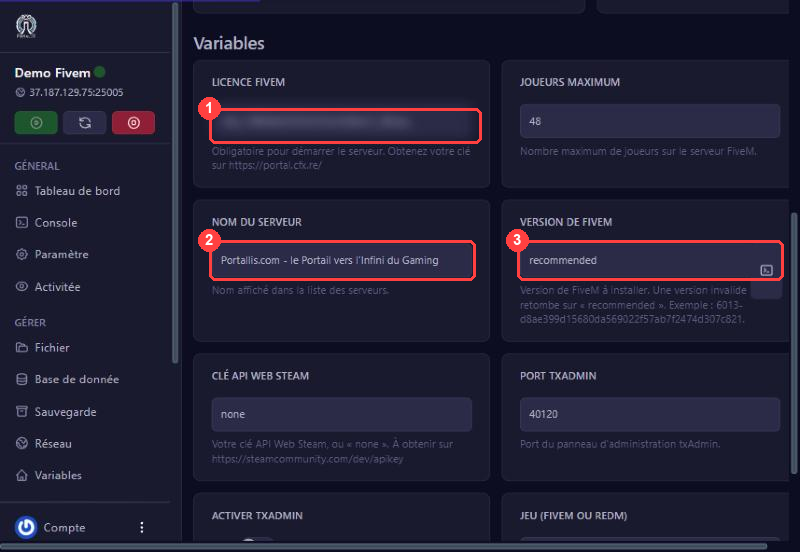
  1. LICENCE FIVEM: paste your key (required).
  2. JOUEURS MAXIMUM (max players) and NOM DU SERVEUR (server name): set them as you like.
  3. PORT TXADMIN: see step 2.
  4. JEU (FIVEM OU REDM): leave “fivem”.
How to start your FiveM server with txAdmin (Portallis panel) : Startup screen, variables
Startup screen, variables
2

Turn on txAdmin

txAdmin is the web interface that runs your server (console, players, settings). To enable it:

  1. Réseau (Network) menu: note a free port on your server other than the main one (here 25007). If there is none, ask support.
  2. Démarrage menu: put that number in PORT TXADMIN, then switch ACTIVER TXADMIN to “True”.
  3. Restart the server.

Do not use the “Activate TxAdmin” button on the FiveM page: it can fail with “allocation limit has been reached”.
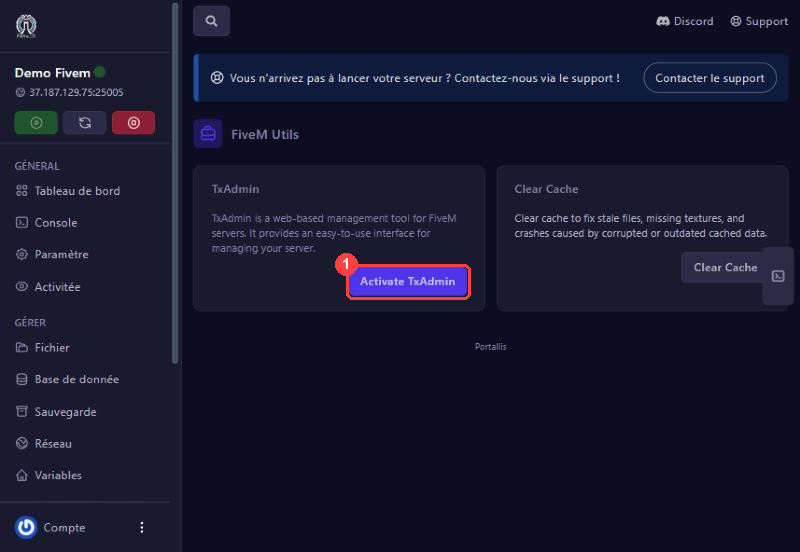
FiveM Utils page
FiveM Utils page
3

Read the address and PIN

Open the Console. After a few seconds a box “All ready! Please access” shows the txAdmin address (http://IP:25007/) and a 4-character PIN. The PIN changes at every start: read it carefully (an 8 and a B look alike).
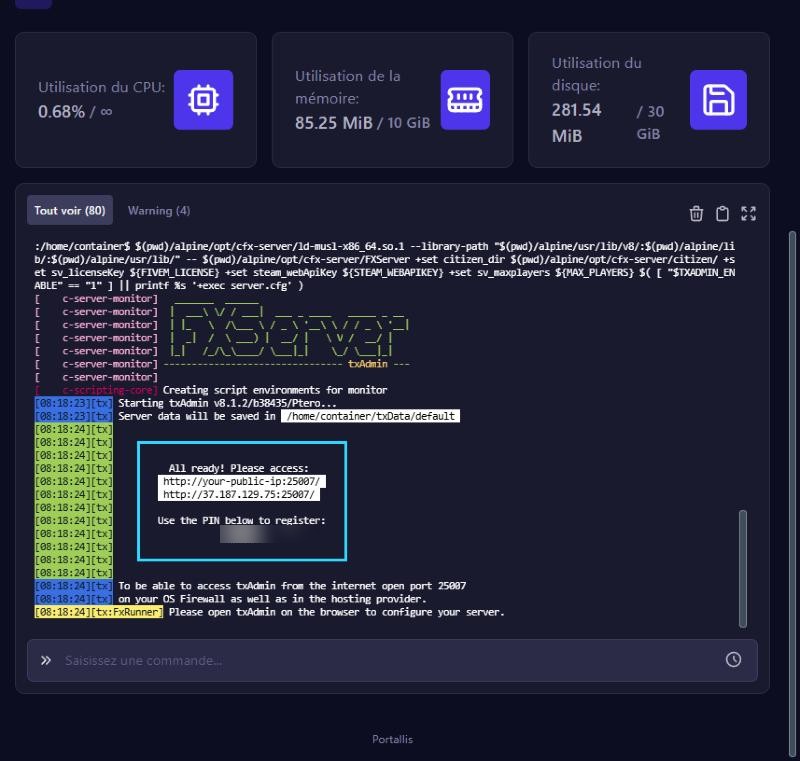
Console: txAdmin address and PIN
4

Link your Cfx.re account

Open the address in your browser. txAdmin shows “No Cfx.re account linked”: enter the PIN. A Cfx.re window asks you to allow txAdmin (it only sees your public profile): click Continue.
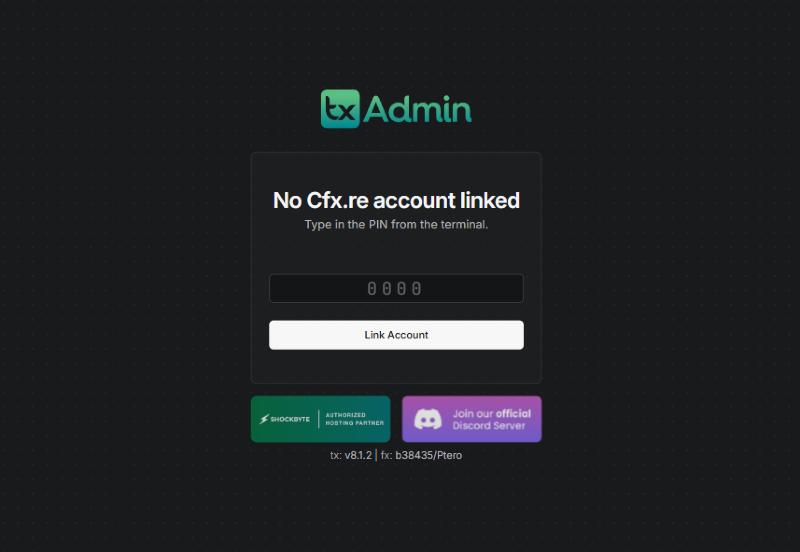
txAdmin asks for the PIN

Finish with the sign-up screen: a backup password (at least 6 characters, keep it safe) and the Cfx.re Creator PLA tick box, then Register.
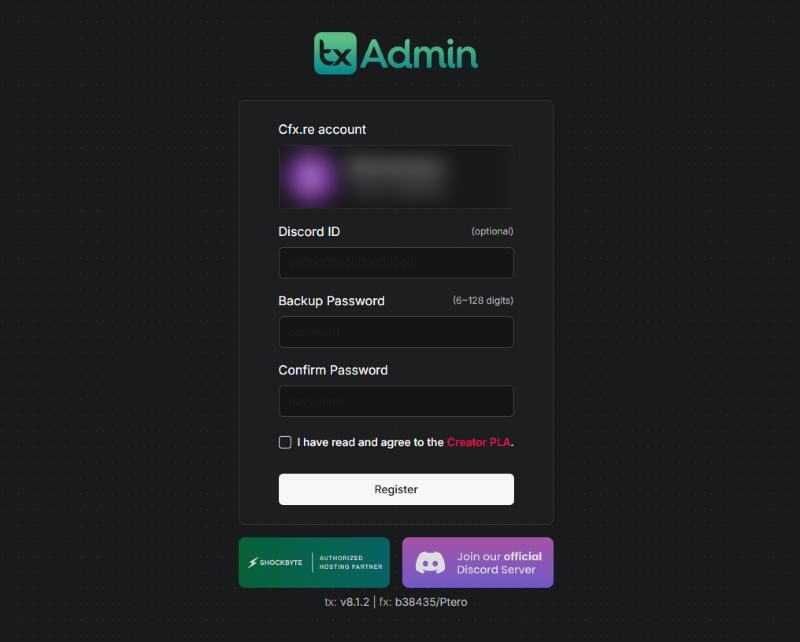
txAdmin sign-up screen
5

Choose the server type (setup wizard)

  1. Server Name: a short name.
  2. Deployment Type: “Popular Recipes”.
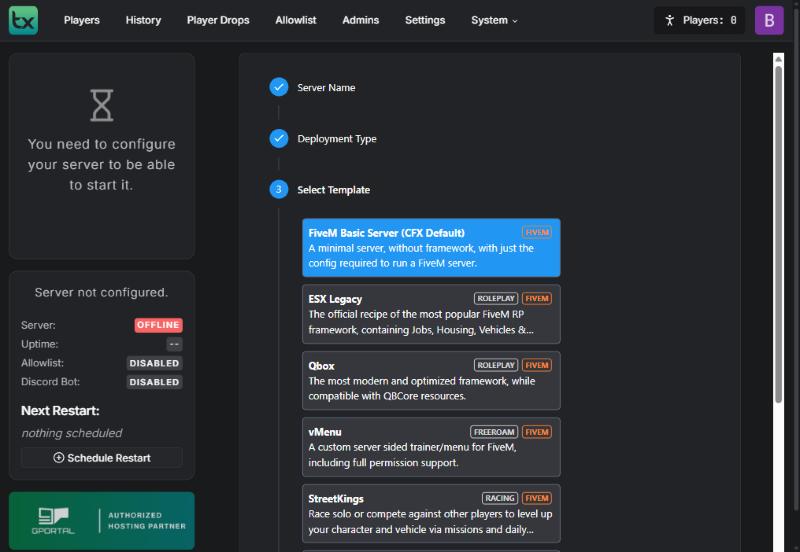
  3. Select Template: “FiveM Basic Server” for an empty server. For a ready-to-play roleplay server, see our ESX, QBCore and Qbox guides.
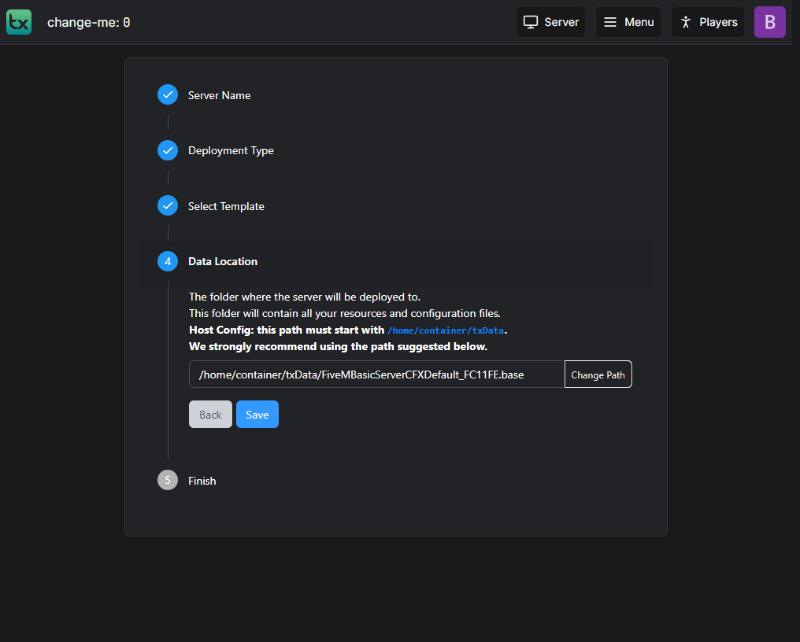
  4. Data Location: keep the suggested folder, then Save.
Template choice
Template choice
Data folder
Data folder
6

Run the recipe

Click Go to Recipe Deployer. Review the recipe, then Next. Paste your licence in “Server Registration Key” and click Run Recipe: txAdmin downloads the files and shows “All done!”.
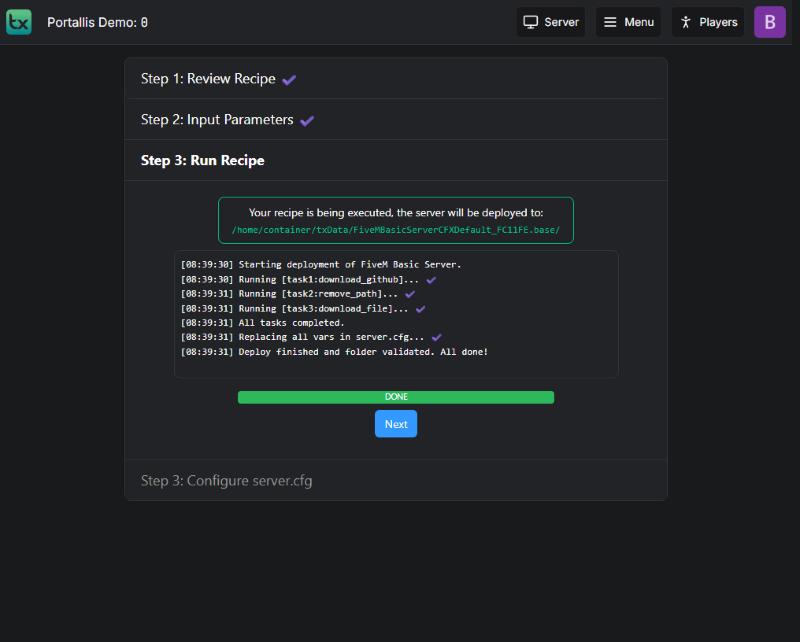
Recipe finished
Recipe finished
7

Set the port, then start

txAdmin shows the server.cfg file. Essential step on Portallis: find the two lines

endpoint_add_tcp "0.0.0.0:30120"
endpoint_add_udp "0.0.0.0:30120"

and replace 30120 with your server’s main port (the one in the IP shown in the panel, for example 25005). Without this, nobody can connect. Then click Save & Run Server.

8

Check it works

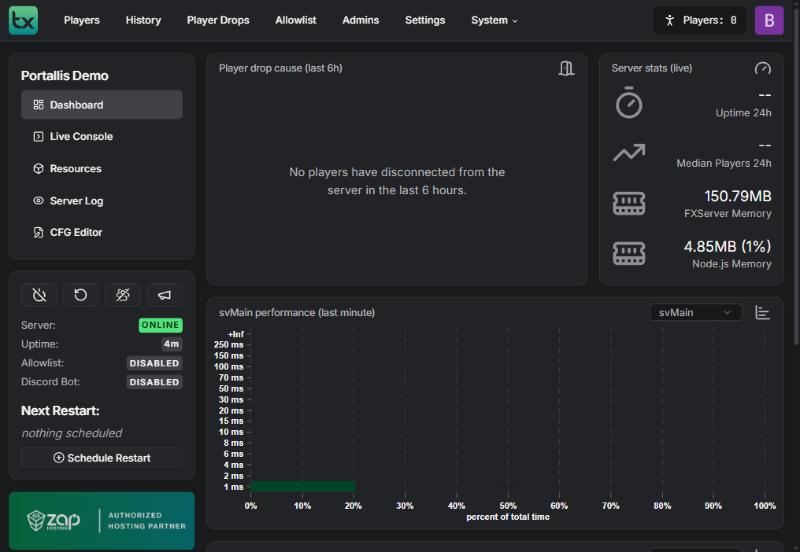
The txAdmin console lists the started resources and the dashboard shows “ONLINE”.
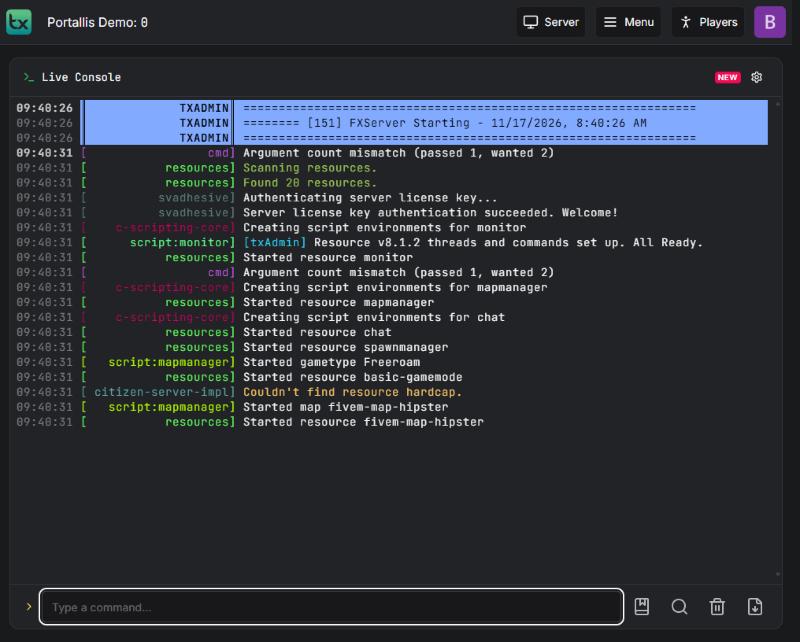
txAdmin console
txAdmin console
txAdmin dashboard
txAdmin dashboard

To join: start FiveM, press F8 and type connect IP:port (the address shown in the panel).

If it does not work

“Wrong PIN”

re-read the PIN in the console (it changes at every restart).

Nobody can connect

check that the endpoint_add_* lines use the main port (step 7).

Server stuck on “Arrêt en cours”

(stopping): wait, then use “Forcer l’arrêt” (force stop) (safe on a new server).

“Server license key authentication failed”

the key is mistyped or tied to another IP address. Recreate it at portal.cfx.re.

“Couldn’t find resource” warnings

in the console are common and do not stop the server.

Questions? Get in touch

Our team will answer by message or on Discord.

No FiveM server yet?

Launch yours in minutes. €1 = 1 GB.

See the FiveM plans