
Minecraft server.properties: the key settings

Step-by-step guide

you set difficulty, game mode, player count or whitelist on your Minecraft server without editing the file by hand.

Time : 5 minutesLevel : beginnerChecked : 17 Nov 2026 (Minecraft 1.21.11)

Before you start

  • server.properties is Minecraft’s settings file. The Propriétés (Properties) screen (Minecraft section of the menu) is an illustrated version of it: each setting is a switch, a list or a field.
  • Minecraft reads the settings at startup: after a change, restart the server.
  • Keep the server online for what follows: settings are written to the file live.
1

Open the screen

Propriétés menu. The Rechercher une propriété (search a property) bar filters the list. Yes/no settings are switches (Activé / Désactivé); difficulty and game mode are buttons to pick; the rest are fields (text or number). The small link next to a setting’s name opens its official description.
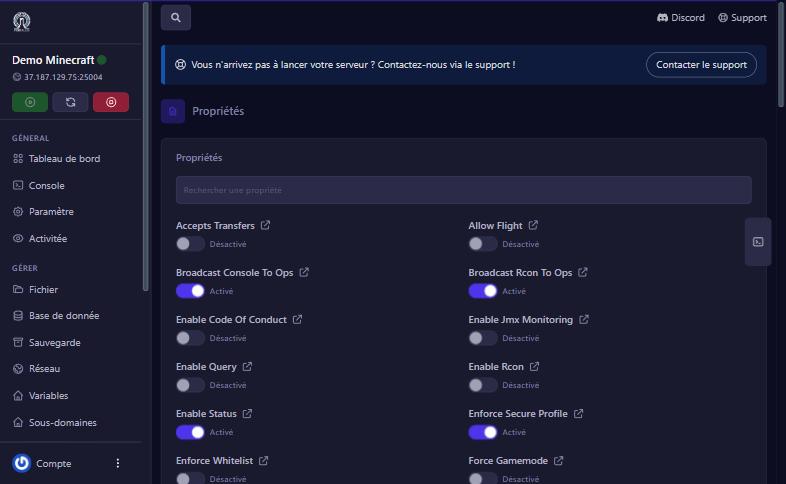
Minecraft server.properties: the key settings : Properties screen
Properties screen
2

Change a setting

Click the switch or type the value: there is no “Save” button. The panel writes the change straight into server.properties. We checked: switching Allow Flight on made the line allow-flight=true appear in the file within seconds, and switching it off set it back to false.

3

The settings you will change most

  • Difficulty: Peaceful, Easy, Normal or Hard.
  • Gamemode: Survival, Creative, Adventure or Spectator (mode for new players).
  • Max Players: players at the same time (20 by default).
  • Motd: the message shown in the game’s server list.
  • View Distance and Simulation Distance: display and simulation distance, in chunks. Lower values lighten the server.
  • White List and Enforce Whitelist: only allow whitelisted players (console command whitelist add name).
  • Online Mode: checks that Minecraft accounts are genuine. Leave it on except in special cases (proxy networks).
  • Level Seed and Level Name: the seed and the world name. Changing the name creates a new world at next start.
  • Spawn Protection: protected radius around the spawn point.
  • Pause When Empty Seconds: delay before an empty server sleeps (this is what prints “Server empty for 60 seconds, pausing” in the console).
4

What to leave alone

Do not change Server Ip or Server Port, nor the Query and Rcon ports: they must match your plan’s ports (see the Network screen), otherwise nobody can connect. Keep Rcon.Password secret if you turn Rcon on.

5

Restart and check

Restart the server from the left menu, then check in the Console that everything starts. You can also open server.properties in the file manager to re-read the value.

If it does not work

My change has no effect

restart the server, Minecraft does not re-read the file on the fly.

Nobody can connect after a change

you probably changed the server’s port or IP address. Put the original value back (the port is shown in the Network screen).

A player is refused

if the whitelist is on, add them with whitelist add name.

The world changed

the world name (Level Name) was edited; put the old name back.

Questions? Get in touch

Our team will answer by message or on Discord.

No Minecraft server yet?

Launch yours in minutes. €1 = 1 GB.

See the Minecraft plans