by the end, your Minecraft server loads the mod, with no manual file upload.
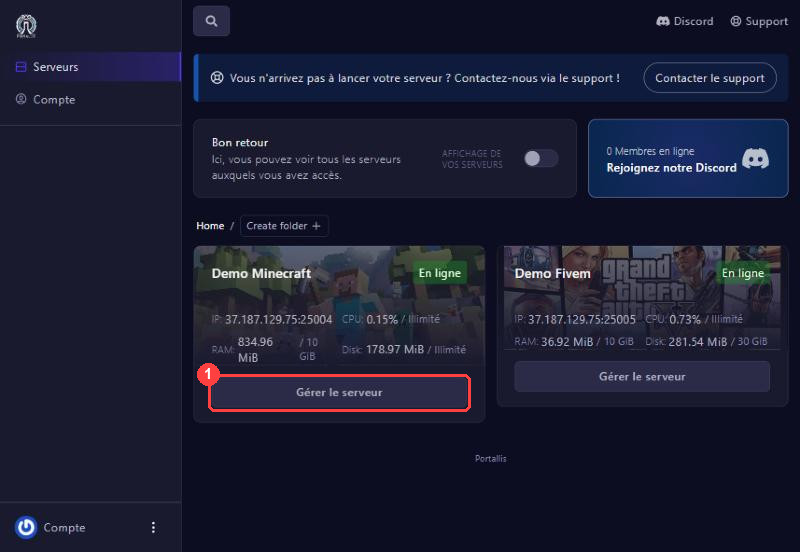
Go to panel.portallis.com and log in. The “Serveurs” page lists your servers with their state (En ligne / Hors ligne), IP address, memory and disk use. Click Gérer le serveur under your Minecraft server.
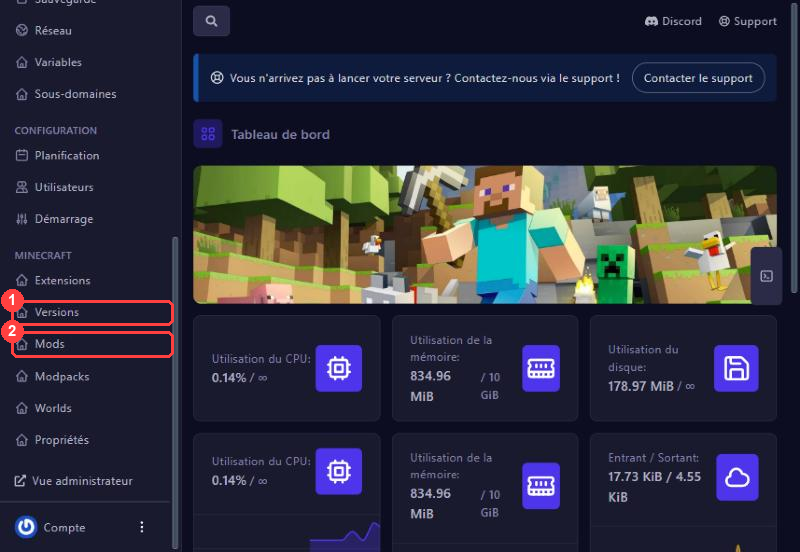
In the left menu, scroll down to the MINECRAFT section. It holds the game’s own tools: Extensions (plugins), Versions (server type), Mods, Modpacks, Worlds and Propriétés. We will use Versions, then Mods.
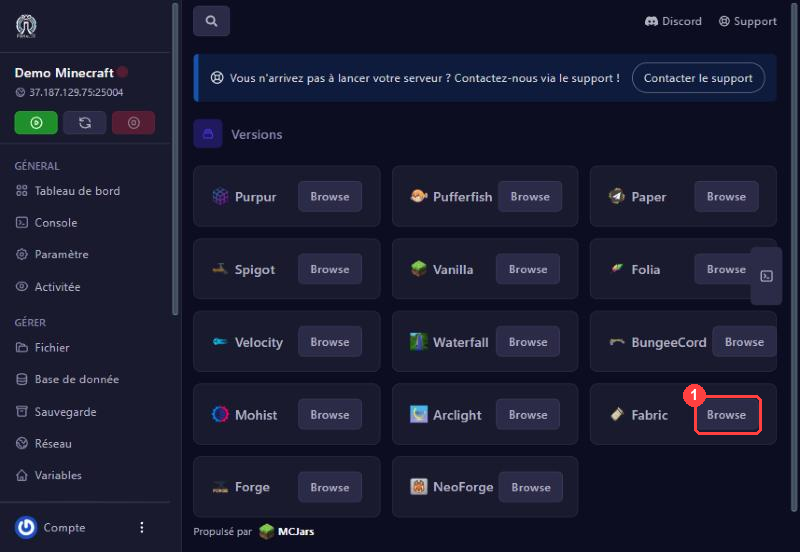
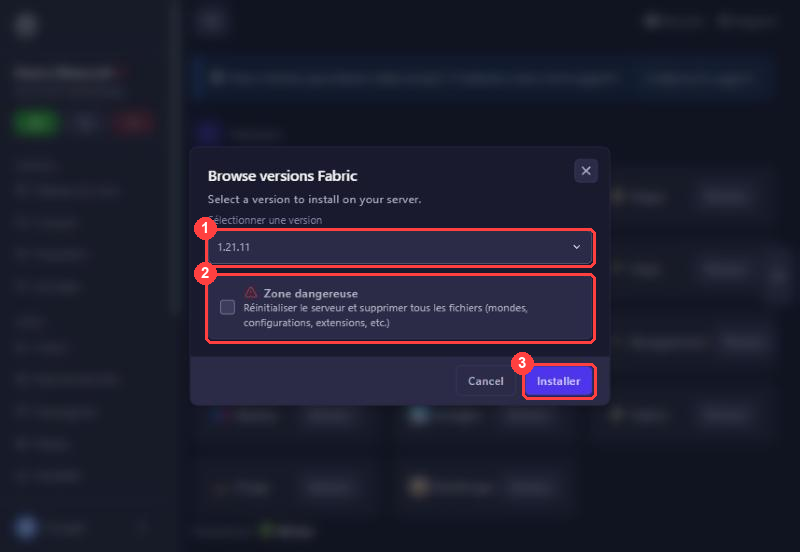
Click Versions. The screen lists server types: Vanilla, Paper, Spigot, Forge, Fabric, NeoForge and more. For mods, pick Fabric (or Forge/NeoForge, depending on your mods) and click Browse next to Fabric.
A window opens:
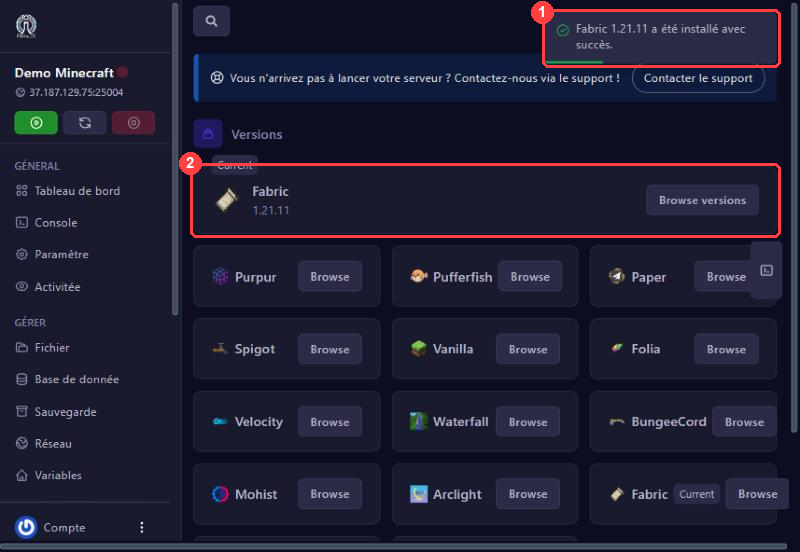
When it is done, the panel shows “Fabric 1.21.11 a été installé avec succès” (installed successfully) and the Versions page shows Fabric marked Current: that is your server type now.
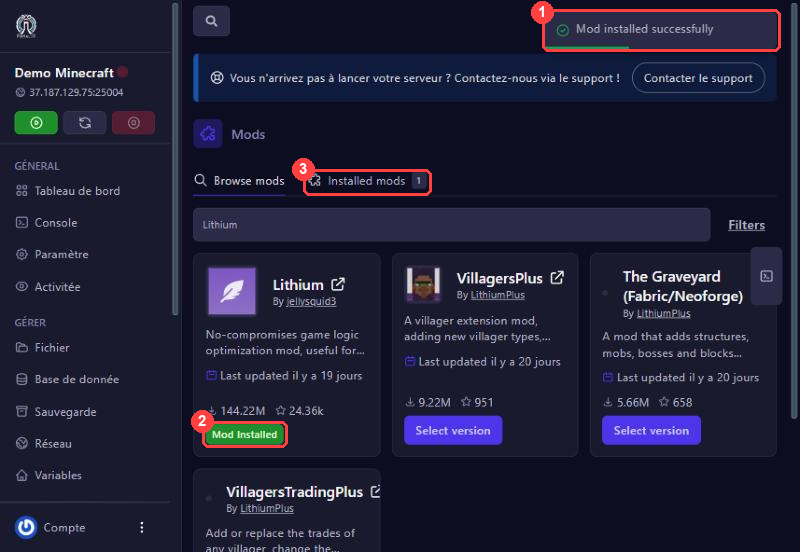
Click Mods in the menu. The Browse mods tab shows popular mods from the Modrinth and CurseForge catalogues. Type the mod’s name in the search bar (here “Lithium”). The Filters button sorts by platform, game version and loader.
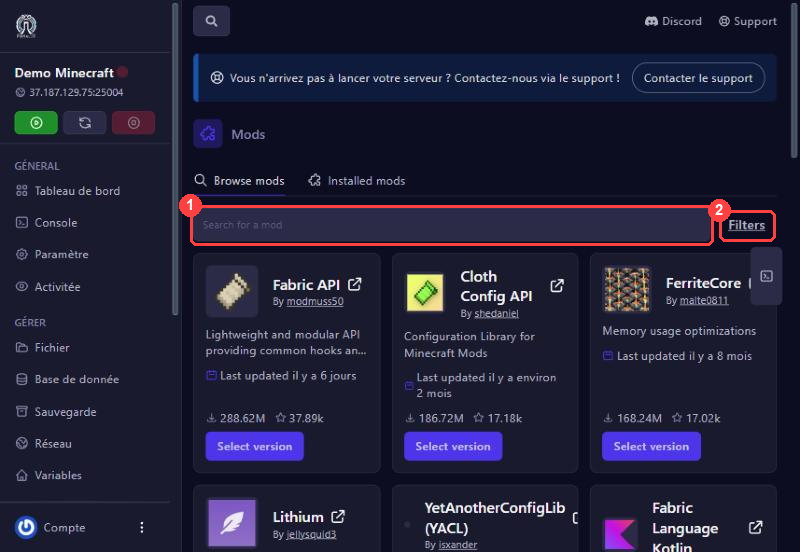
Set the filters to avoid mistakes. In Filters, pick your server’s version (1.21, then 1.21.11) and the Fabric loader.
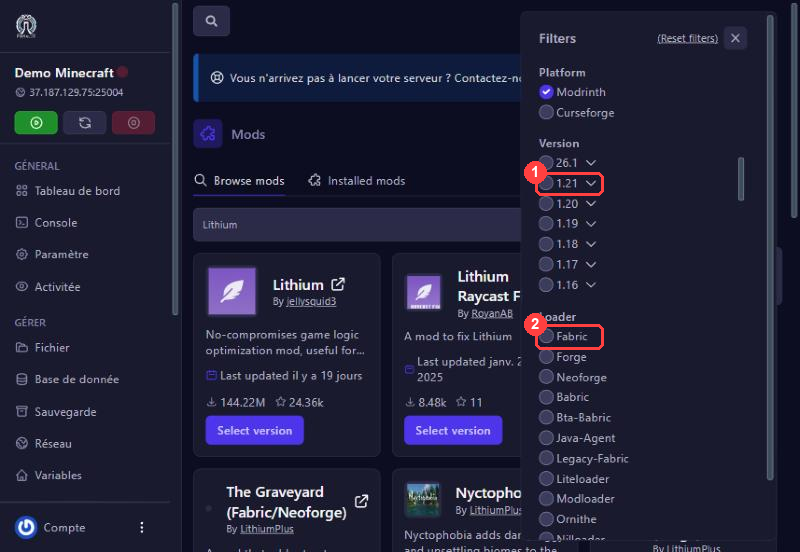
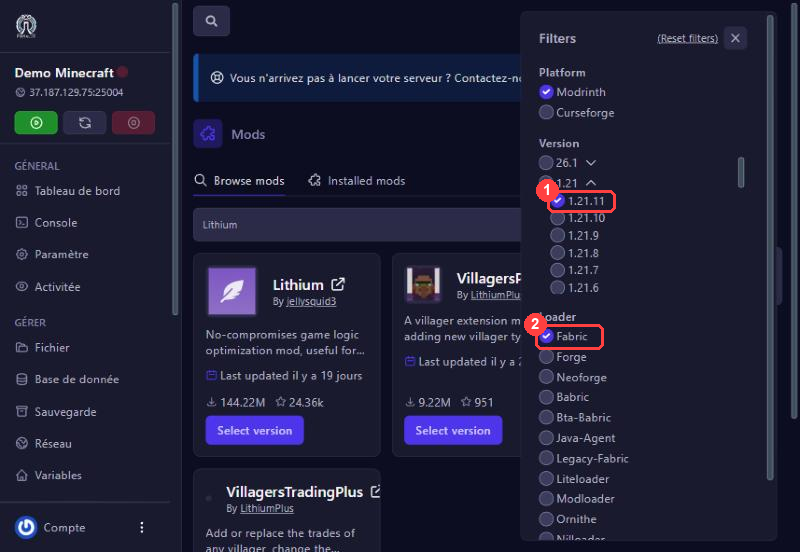
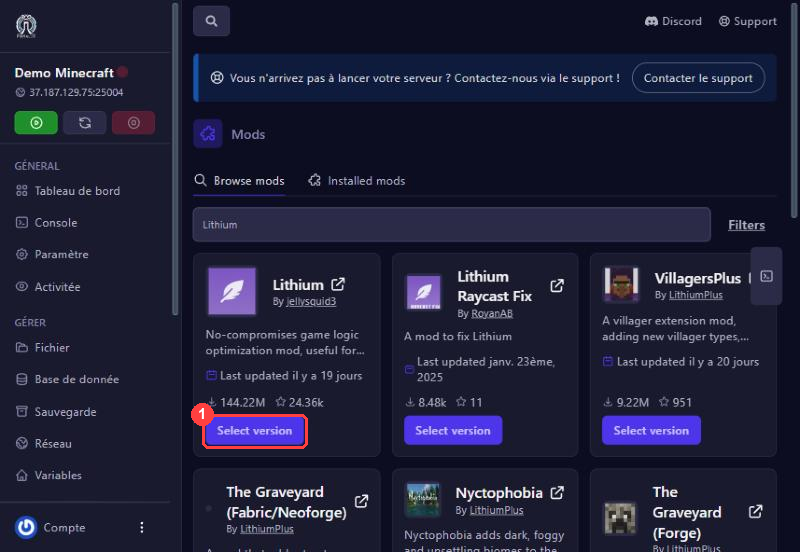
Click Select version under the mod. In the window, the “Select a version” list offers every version of the mod, for every loader and every Minecraft version. Careful: the line shown by default is not necessarily the right one. Here it says “neoforge … mc26.3”, while our server runs Fabric 1.21.11.
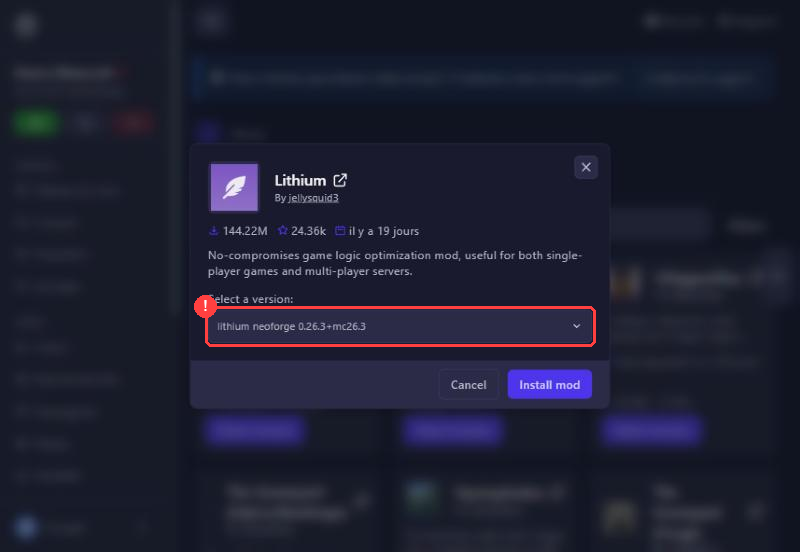
Open the list and choose the line that contains both your loader name (“fabric”) and your Minecraft version (“mc1.21.11”), for example “lithium fabric 0.21.4+mc1.21.11”. Then click Install mod.
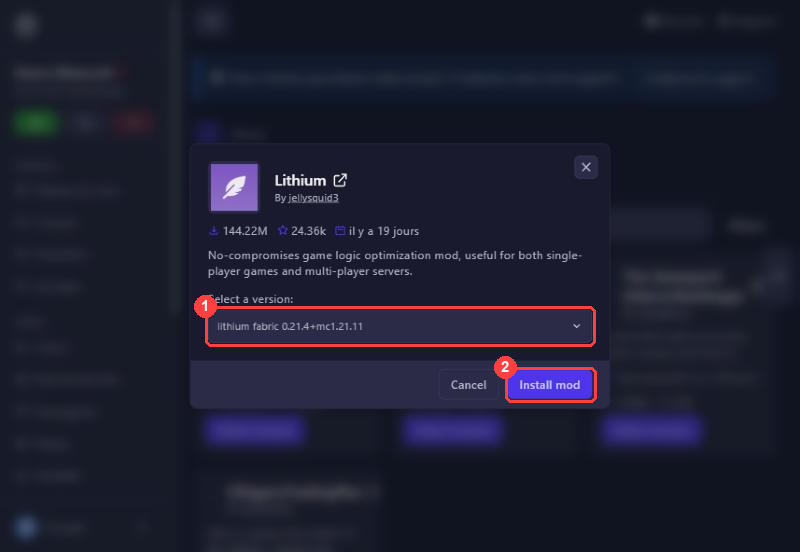
The panel confirms “Mod installed successfully” and the mod’s card shows Mod Installed.
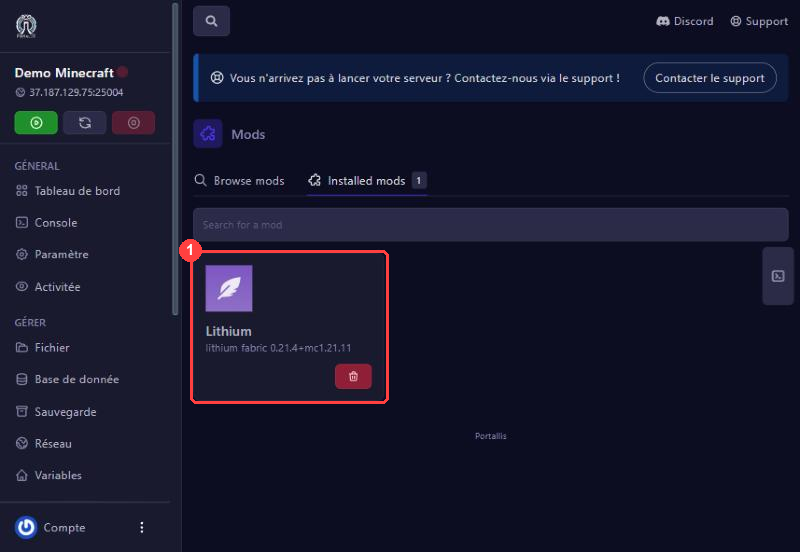
Open the Installed mods tab (the number is how many mods you have). Each mod is listed with its exact version name. The red bin removes it if needed.
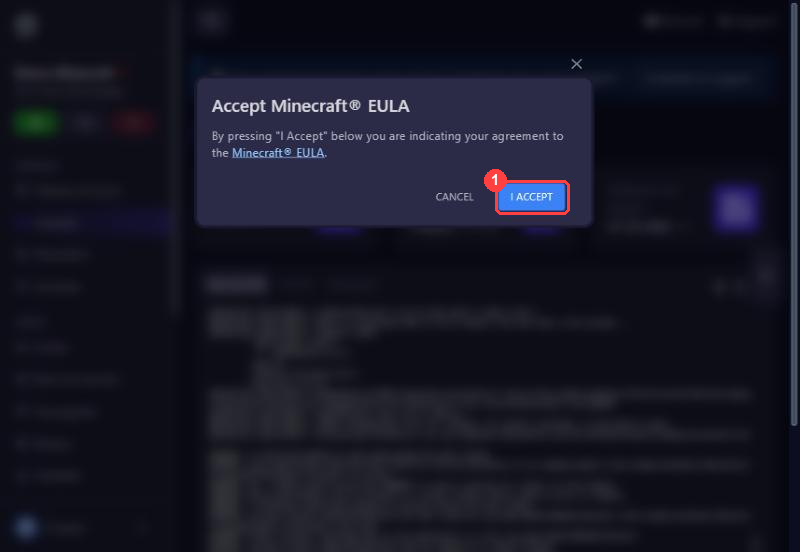
Click the green start button at the top of the left menu (or Restart if the server was already running). On the very first start, Minecraft asks you to accept its licence agreement (EULA). Read it, then click I ACCEPT: the server then restarts by itself.
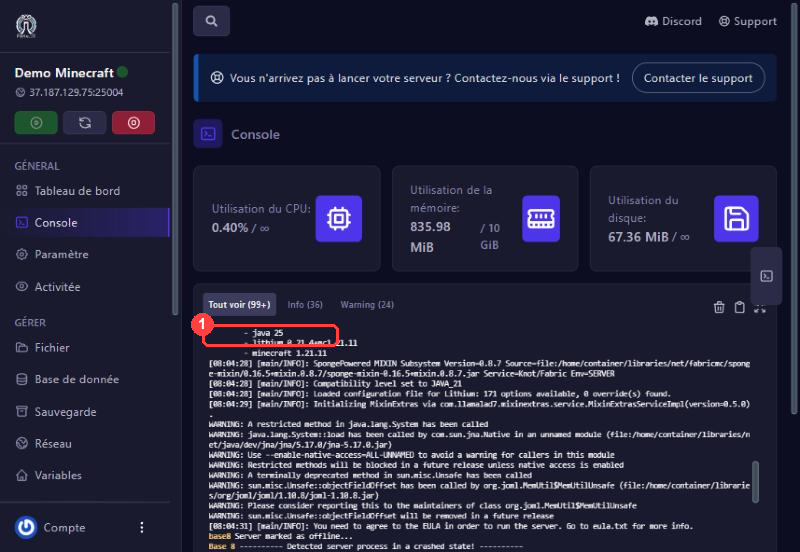
Open Console. During startup the console lists the loaded mods: you should see lithium 0.21.4+mc1.21.11 (or your mod) and the Minecraft version.
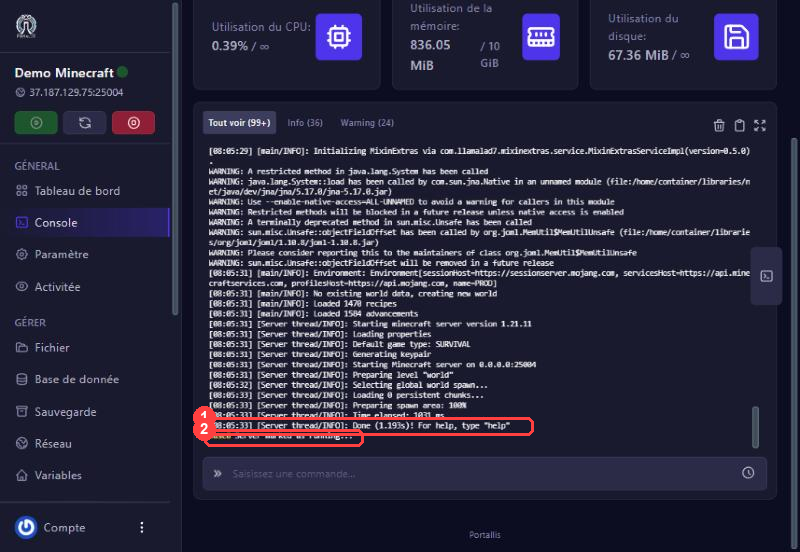
A few seconds later the line Done (…s)! For help, type “help” appears, then the panel says “Server marked as running”: your server is ready with your mod.
the mod version does not match your loader or Minecraft version. Go to Mods > Installed mods, delete the mod (bin icon), then redo step 5 choosing the line with the right loader and version.
(for example “Fabric API”): many Fabric mods need it. Install it like any mod (steps 4 and 5), then restart.
shows on first start: that is normal, accept the EULA (step 7).
check memory on the dashboard. The more mods, the more RAM you need. You can add RAM at any time.
many mods must also be installed on their side, in the same version. Lithium does not need to be.
Our team will answer by message or on Discord.