
Create a Minecraft server step by step: from order to first login
you go from zero to an online Minecraft server, ready for your friends.
Before you start
- You need a Minecraft Java account to play, and a browser. Nothing to install on your computer: the server runs on our side, day and night.
- At Portallis, €1 = 1 GB of memory: for a few friends on vanilla, 4 GB is enough; with mods or many players, plan for more. See the Minecraft server page to choose.
Order
On the game page, pick your plan then confirm the order. At the end, your server shows in your client area and on the panel, where you run it: start, stop, install mods, read the console. Log in to the panel with the same credentials.
Open the panel and find your server
On the panel, click your server in the list. The dashboard shows its state (“En ligne” online or “Hors ligne” offline), its address (an IP address followed by a port, for example 37.187.129.75:25004), memory and processor use, and the Start, Restart, Stop buttons.
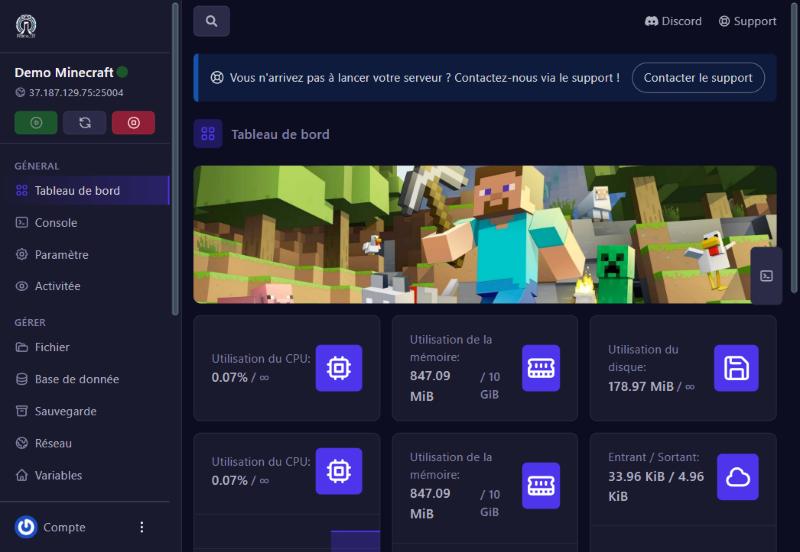
Pick the server type
By default, your server is ready to use. If you want plugins (shops, protections) or mods, open the Versions screen and pick the type: Paper for plugins, Fabric or Forge for mods (see the “Choose your server version” guide). To play vanilla with friends, change nothing.
Start
Click Start. In the Console, messages scroll: game loading, world creation, then a line saying the server is ready (“Done”). The first start takes a minute or two. If the console mentions the EULA (Mojang’s agreement), open eula.txt in the file manager and set eula=true, then restart.
Set the essentials
On the Properties screen, three settings are worth a look before inviting people: difficulty, game mode and the max players (20 by default). See the “server.properties” guide.
Join
In Minecraft Java: Multiplayer, Add Server, paste the dashboard address (IP and port), then Done and join. The “Join your Minecraft server” guide details this step and the common errors. We checked from outside that the demo server answers: it reports version 1.21.11 and 20 slots.
Invite your friends
Give them the same address. If your server is private, turn on the whitelist and add them (see “Minecraft admin commands”).
If it does not work
The server stays “Hors ligne” (offline)
read the Console after clicking Start. An error there explains the cause (often an incompatible mod or the EULA).
“Unable to connect to server”
check that the server is online, that the address is complete (IP and port) and that your Minecraft version matches (Versions screen).
The server is slow
see the “Reduce lag” guide.
Need help
write to us, with the last console line.
Questions? Get in touch
Our team will answer by message or on Discord.