
Join your Minecraft server: address, port and common errors
you find your server’s address, add it in Minecraft Java and know how to fix the most common connection errors.
Before you start
- You need Minecraft Java Edition (not Bedrock, the console and mobile version: it does not use the same address).
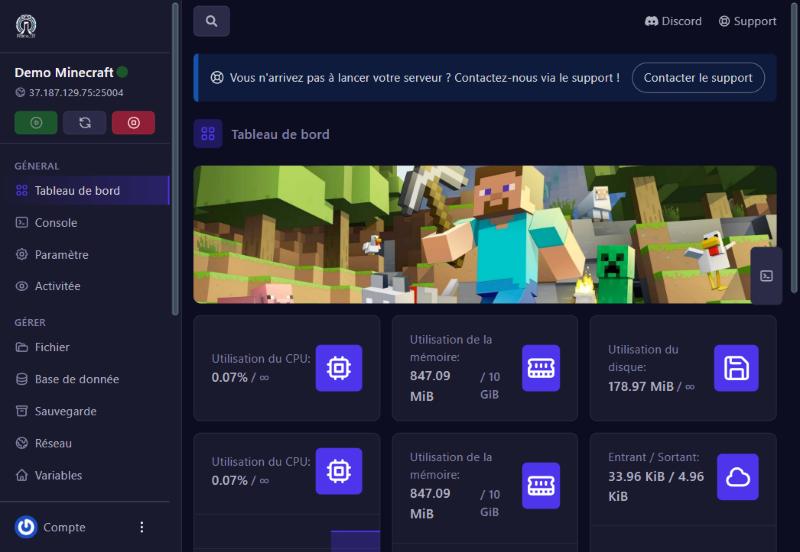
- Your server must be online (“En ligne”): check its state on the panel dashboard.
- Your Minecraft version must match the server’s (see the Versions screen, the Current line).
Find the address
On the panel, open your server: the address shows under its name, as IP address:port (for example 37.187.129.75:25004). The Network screen gives it too. The port is the number after the colon: it is specific to your server and is not always Minecraft’s usual 25565.
Add it in Minecraft
Start Minecraft Java, then Multiplayer > Add Server. Give it a name, paste the address with the port in “Server Address”, confirm with Done, then double-click the server in the list. A server that answers shows its message of the day (MOTD) and the player count.
Check that the server answers
We tested the demo from outside with a Minecraft status request: the server answered with its version (1.21.11), its slot count (20) and its message of the day. If your server shows this information in the list, it is reachable; if not, the problem is on the server or address side, not in your game.
Private server: the whitelist
If the administrator turned on the whitelist (white-list setting), only the added usernames can join. A refused player sees a message like “You are not whitelisted on this server”. Ask the administrator to add you (see “Minecraft admin commands”).
If it does not work
“Unable to connect to server” / timed out
the server is probably offline or the address is incomplete. Check the state on the panel, copy the address with the port, no spaces.
“Incompatible version” (“Outdated server” or “Outdated client”)
your Minecraft is not in the same version as the server. Change your launcher profile’s version or the server’s in Versions.
A missing mods message
the server runs Fabric or Forge and requires mods. Install the same modpack as the server (see “Install a modpack”).
“Failed to verify username” or “Invalid session”
restart the Minecraft launcher and sign in to your Microsoft account again.
The server is in the list but full
the max player count is reached; the administrator can raise it in Properties (Max Players).
Questions? Get in touch
Our team will answer by message or on Discord.