
you can read what your server is doing and send it commands without leaving your browser.
In the left menu, click Console. A small “console” button on the right edge of every screen also opens the same console in a side panel, handy to watch the server while you change page.
The big area shows the server’s messages with the time. Four tabs above filter them: Tout voir (all), Info, Warning and Error. The icons on the right clear the display, copy the text and go full screen. When a Minecraft server starts, the line “Done (…s)!” means it is ready.
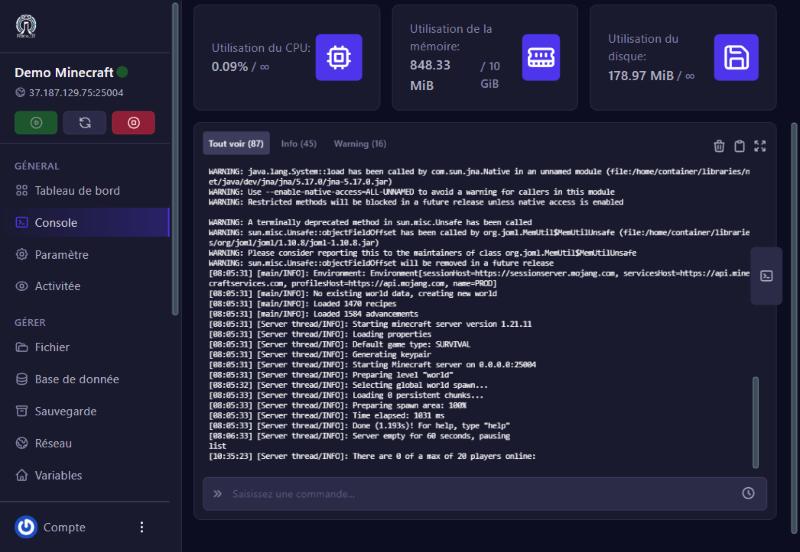
Click the Saisissez une commande… (enter a command) bar at the bottom, type the command without a leading /, then press Enter. On our test Minecraft server, list answered “There are 0 of a max of 20 players online”. The command you typed appears in the console, followed by the server’s answer.
The small clock at the right of the bar keeps your history: recall a recent command instead of retyping it.
the server is offline. Start it first.
on Minecraft: normal, the server sleeps when nobody is connected and wakes when a player joins.
(yellow “WARNING”): common and harmless if the server then says it is ready.
copy the line and send it to support, it is the best information for a diagnosis.
Our team will answer by message or on Discord.