
you know what the “Démarrage” (Startup) screen holds and how to change a variable without breaking your server.
Démarrage menu (Configuration section). At the top, the Commande de Démarrage card shows the exact command that launches the game (here java -Xms128M -XX:MaxRAMPercentage=95.0 -jar server.jar nogui for Minecraft). The “Default” drop-down offers other command templates if your game has any.
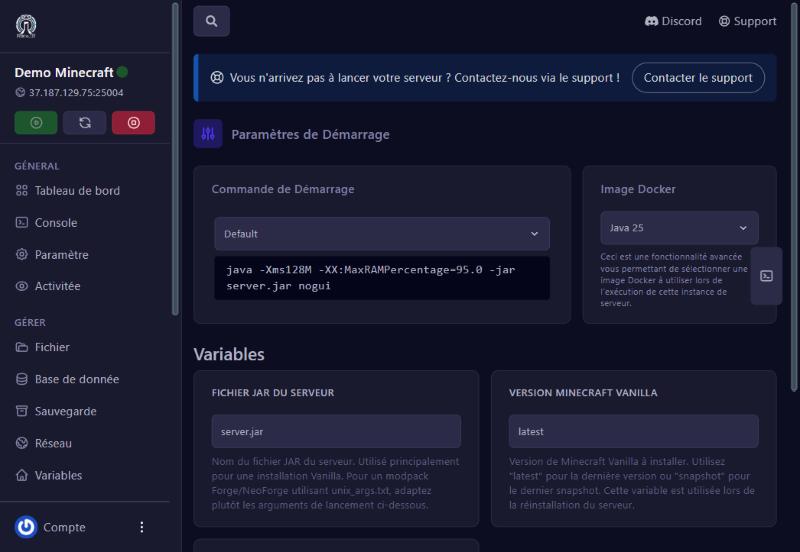
The Image Docker card sets the runtime version (for example “Java 25” for Minecraft). It is an advanced option: some mods or older Minecraft versions need an older Java.
Under Variables, each card is a game setting. For Minecraft: Server JAR file (server.jar) and Vanilla Minecraft version (“latest” or a specific number). For FiveM: the licence, max players, server name, txAdmin port, etc. (see “Start your FiveM server with txAdmin”). Each card explains its value in small print. A valid value is saved as soon as you leave the field.
Restart the server, then open the Console: the first lines show whether the game took the new setting.
put the old value back, restart, then read the console.
change the Docker image, or contact us.
read the text under the field, and if in doubt leave it alone.
Our team will answer by message or on Discord.