Backups: create, lock and restore

Step-by-step guide

you create a backup of your server in under a minute, can lock, download or delete it, and know the steps to restore it.

Time : 3 minutesLevel : beginnerChecked : 17 Nov 2026

Before you start

  • The number of backups is limited per plan (3 on our FiveM test server). If the limit is 0, the panel says so and you cannot create any: contact us to add backups.
  • A backup covers the server files (world, configuration, mods). If you use a database (ESX, QBCore, Qbox), check with us that it is covered.
1

Open the screen

Sauvegarde (Backup) menu. You see the list (name, size, date, checksum) and the counter “1 of 3 backups created”.
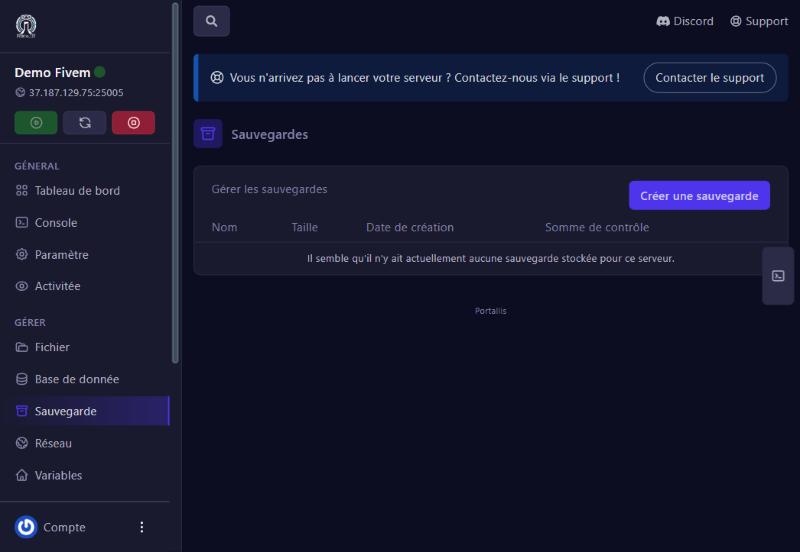
Backups: create, lock and restore : Backups screen
Backups screen

If the limit is 0, a message says so instead of the button:
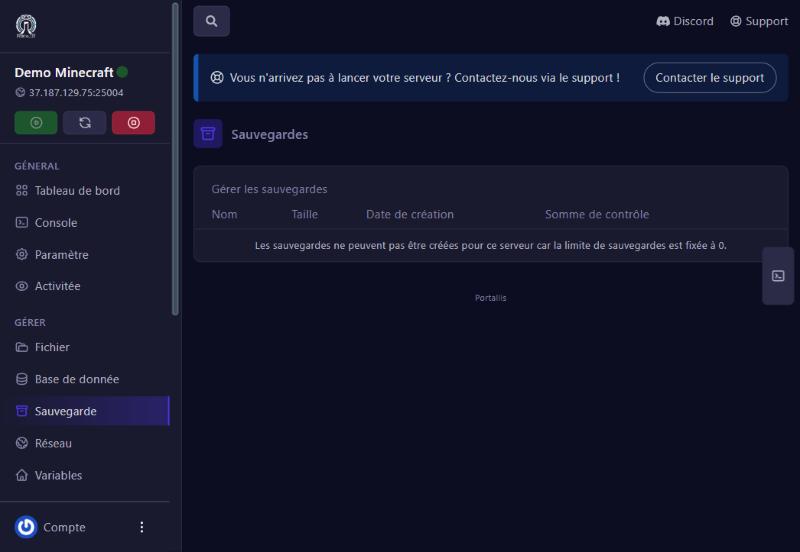
Backup limit at 0
Backup limit at 0
2

Create a backup

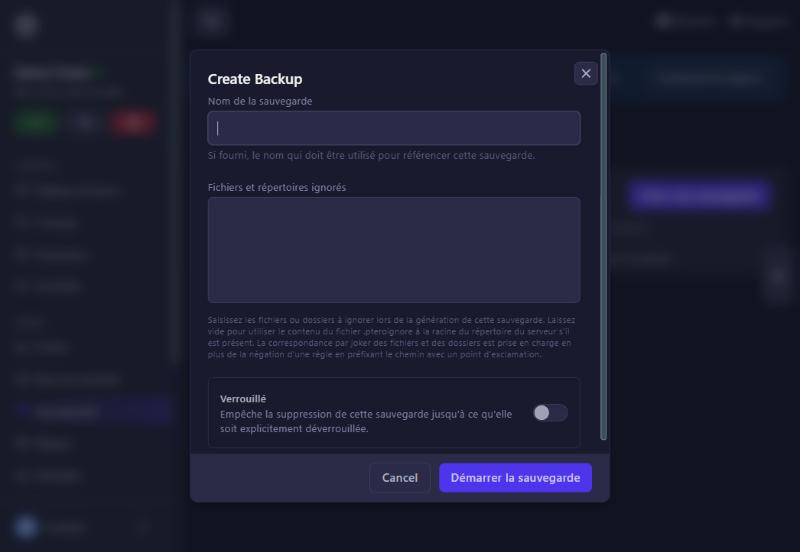
Click Créer une sauvegarde. Fill in:

  1. Nom de la sauvegarde (name): for example “before-update”.
  2. Fichiers et répertoires ignorés (ignored files and folders): optional, to exclude big useless folders (leave empty to back up everything).
  3. Verrouillé (locked): prevents accidental deletion until you unlock it.

Then Démarrer la sauvegarde.

Create backup window
3

Check it

The backup appears within seconds with its size (here 627 MB) and the counter goes to “1 of 3”.
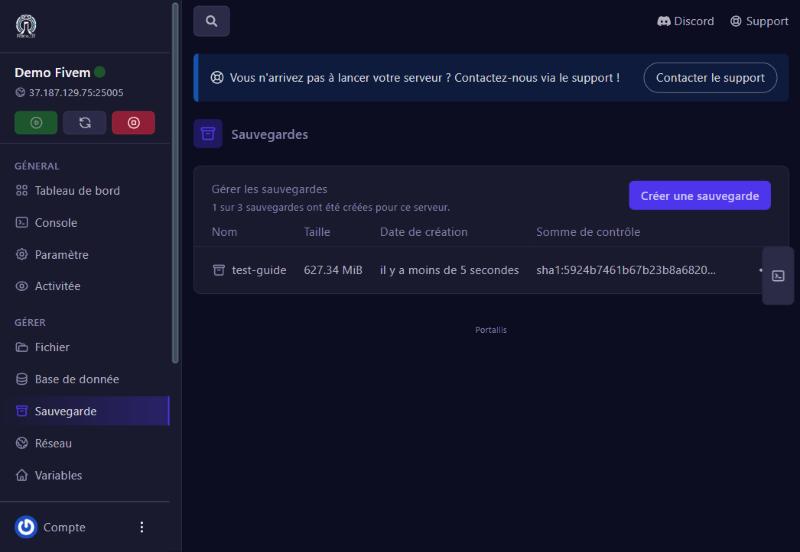
Backup created
Backup created
4

Download, restore, lock, delete

The row’s ⋯ menu offers:

  • Verrouiller (lock): a red padlock appears on the row, and the Supprimer button disappears from the menu while the backup is locked. The menu then offers Déverrouiller (unlock).
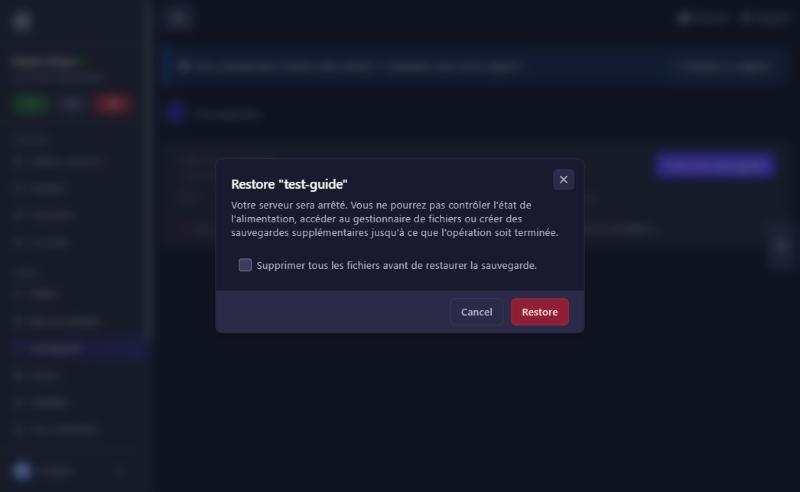
  • Restaurer (restore): a window warns that the server will be stopped and that you cannot control its power, open the file manager or create backups until it finishes. The Supprimer tous les fichiers avant de restaurer box wipes the server first; leave it unticked to simply replace files from the backup. Click Restore.
  • Supprimer (delete): asks for confirmation (“permanent operation”), then the backup disappears and frees a slot.
  • Télécharger (download): keep a copy at home.
Restore confirmation

During a restore, the panel shows “Restoring from Backup”. Always check the result: then open the Activity log (“Activitée” menu). A server:backup.restore-failed line means the restore did not succeed; in that case do not retry in a loop: the server may stay stuck on “stopping” and you should contact us, with the event’s time. Once a restore has succeeded, the server stays stopped: click Start.
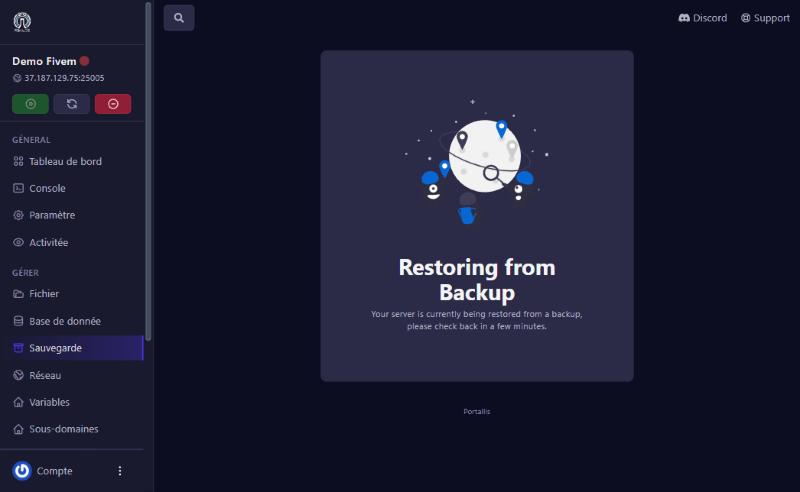
Restore in progress
Restore in progress

If it does not work

“Backup limit is set to 0”

your plan has no backup for this server. Write to us.

Cannot create a new one

the limit is reached. Unlock then delete an old backup.

The server is stopped after a restore

normal if it succeeded, click Start. Otherwise check the activity log (backup.restore-failed line) and contact us.

The restore fails or the server stays on “stopping”

contact us with the time of the attempt; use “Force stop” only as a last resort.

The backup is huge

use “ignored files and folders” to exclude useless files (logs, caches).

Questions? Get in touch

Our team will answer by message or on Discord.

No game server yet?

Launch yours in minutes. €1 = 1 GB.

Browse our games