
you understand your list of ports, can annotate them, and can link your own domain name to your Minecraft server.
Réseau (Network) menu. Each row gives the IP address, the port and a Notes field. The port marked Primaire (primary) is your server’s main address: it is the one shown in the server list and at the top of the menu, and the one your players use (IP:port). The other ports serve side tools (for example txAdmin on FiveM).
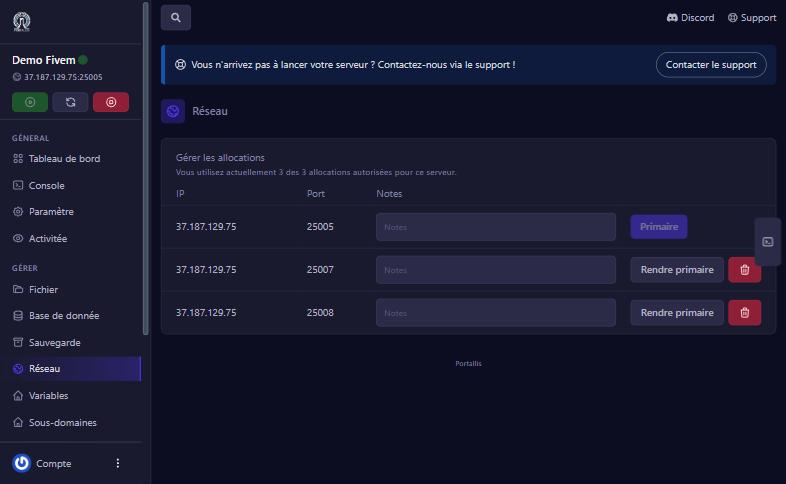
Click in a row’s Notes field, write what the port is for (for example “txAdmin”), then click elsewhere: the note is saved and still shown after reloading the page. Handy to avoid mixing up your ports later.
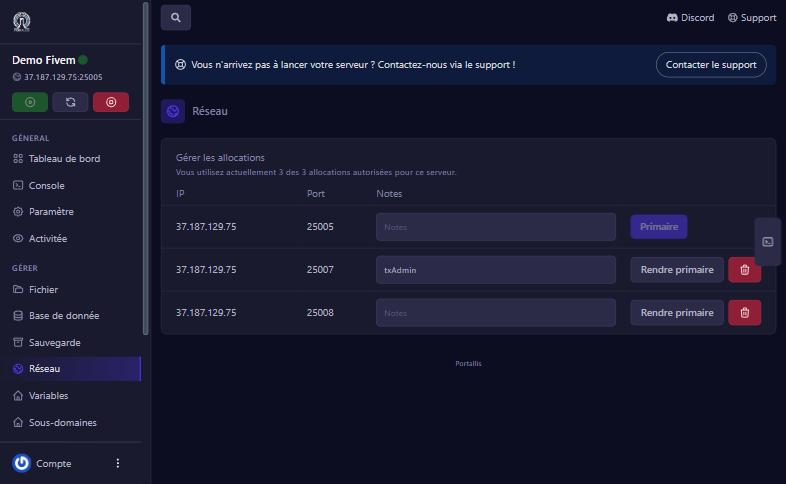
The Rendre primaire (make primary) button turns another port into the main address. Your players must then use the new IP:port, and the server must listen on that port: check the game’s configuration first. The bin deletes a port: never delete a port your game or txAdmin uses. Once you have reached your limit there is no button to add one: contact us to get more.
On a Minecraft server, the screen also holds a Générateur d’enregistrements (record generator) so your players type play.yourdomain.com instead of an IP address:
play.example.com) with the name you want, for example play.yourdomain.com. Clear all the text first._minecraft._tcp.play.yourdomain.com, whose content gives the port: 0 5 <your port> play.yourdomain.com.play.yourdomain.com in Minecraft.The SRV record carries the port: players do not have to add :25004 after your domain name.
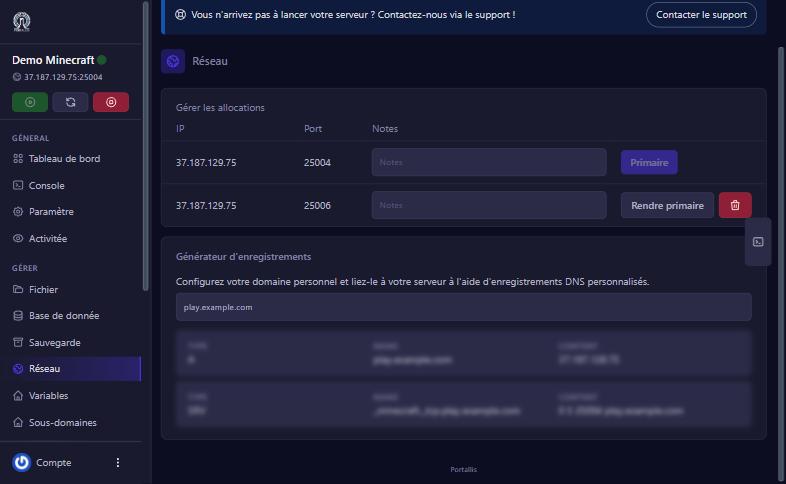
wait for propagation, then check both records exist and that the A record’s name matches the SRV record’s target.
the SRV record is missing or its name is wrong (it starts with _minecraft._tcp.).
the server does not listen on that port. Make the old one “Primaire” again or fix the game’s configuration.
it appears on our Minecraft servers; for other games use the IP:port address or contact us.
Our team will answer by message or on Discord.